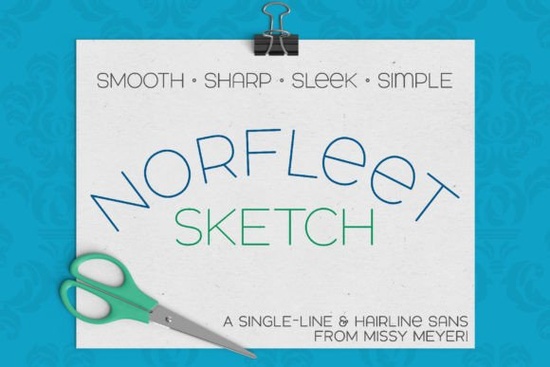
When you are working with engraving tools, foil quills, or sketch pens, standard typefaces often create double lines that ruin the effect. This is where the Norfleet Sketch (single Line) Font becomes essential. It was built exclusively as a single-line font from the ground up, meaning every letter is drawn with one continuous stroke. This design ensures clean, elegant results without the overlapping outlines you see in regular printing fonts. If you are a crafter or designer looking to simplify your workflow for specialty tools, understanding how this typeface functions is the first step toward better projects.
What makes this font different from standard typefaces?
Most digital fonts are designed for printing or screens, where letters are formed by outlines filled with color. When you use those for engraving or drawing, the machine traces the outside edge, goes around, and comes back, creating a double line. That looks messy on materials like leather, metal, or cardstock. A true single-line font avoids this by using minimal nodes and smooth curves that mimic hand-drawing. The modern wide stance of this specific font gives it a contemporary feel while remaining sharp and clean. It is not meant for word processing or standard printing, but rather for any stylus or nib that draws letters with a single path.
Which version should you choose for your project?
One confusing aspect of specialty typography is selecting the right file format. This product comes in two distinct versions to handle different software needs. Norfleet Sketch One is a true single-line font made from a single stroke from beginning to end. It is ideal for CNC programs like Rhinoceros. However, most common design programs will connect the start and end points automatically. If you are proficient in vector design software like Illustrator or Inkscape, you can use this version and manually remove that connection.
If that sounds complicated, Norfleet Sketch Two is likely the better choice. This is a hairline font where the strokes are so close together they are virtually invisible. It is meant for use in most crafting and design programs without tweaking. You can use this version in Silhouette Studio, Cricut Design Space, Adobe Illustrator, CorelDRAW, and Affinity Designer. It allows you to just type and go without worrying about vector nodes.
What tools work best with single-line styles?
Because this font is not for cutting outlines, it shines when used with specific hardware. You should consider using it with:
- Sketch pens for drawing details on cards.
- Foil quills for adding metallic accents.
- Engraving tools for metal or leather projects.
- Infusible ink pens for fabric designs.
- Glowforge scoring tools for precise markings.
Remember that single-line and hairline fonts can't be used for ordinary printing. They are specialized tools for specific jobs. If you try to use them for a standard document, the lines may appear too thin or disconnected.
Looking for pairing options?
While this font looks nice all by itself, it pairs well with other cohesive designs. Since it is a clean sans-serif, you can combine it with heavier weights or different styles to create hierarchy. For example, if you need something with more personality for a headline, you might check out styles like the Adventure font for a contrasting vibe. For body text or supporting elements, something sturdy like Bourgueil can ground the design.
If you want a friendlier look for social media graphics, an option like Sunflower works well alongside the sharp lines of a sketch font. For projects requiring bold impact, Bouldy provides weight that balances the minimal nodes of the single-line style. Mixing these types helps you create a cohesive design without relying on a single typeface for everything.
Are there software compatibility issues?
It is important to note that not all programs handle these files equally. Due to known issues with Brother Canvas Workspace, the creator cannot guarantee that any single-line fonts will work in that specific program. Always test a single letter before committing to a full project. To help you navigate these choices, the download includes a PDF guide to single-line fonts. This guide helps you select which version to use and offers hints on how to implement the font in specific programs. Never fear if you are unsure; the guide is there to assist with the technical side so you can focus on creating.
Getting started checklist
Before you begin your next crafting session, review these steps to ensure success with your new typography tools:
- Identify your tool: Confirm if you are using a sketch pen, foil quill, or engraver.
- Check your software: Determine if you need the true single-line version or the hairline version.
- Download the guide: Open the included PDF to verify compatibility with your specific design program.
- Test a sample: Run a quick test on scrap material to check line thickness and continuity.
- Pair wisely: Select a complementary font for supporting text if needed.
Taking these small precautions saves time and materials in the long run. With the right setup, you can produce professional-looking engraved or drawn designs consistently.
Explore Design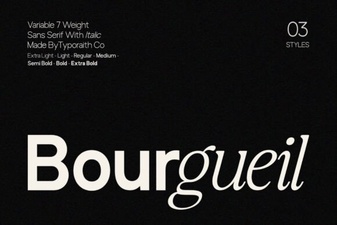 The Bourgueil Font for Designers & Modern Projects
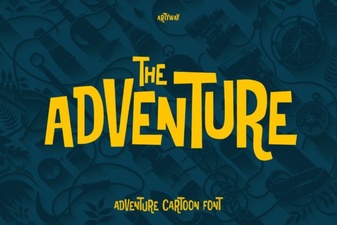 Find & Download Top Adventure Fonts
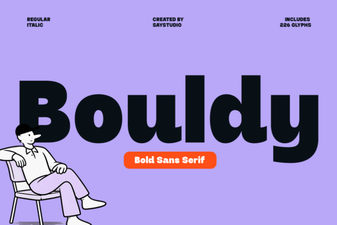 Bouldy Font: Bold, Natural Design Inspiration
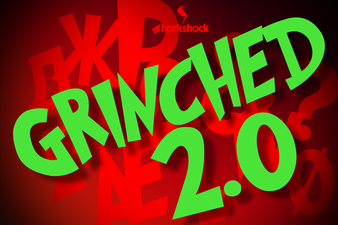 The Grinched 2.0 Font for Creative Design Projects
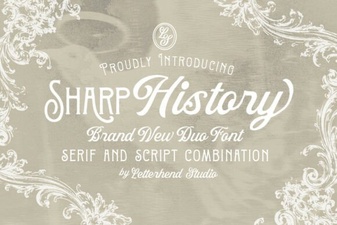 Sharp History: a Clean, Modern Font for Designers
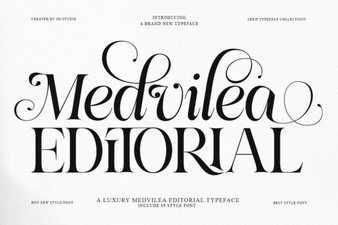 Medvilea Font for Editorial Layouts & Design